How to Set Up IPTV Services on Firestick, Android & Smart TV (2026)

Your app downloader code

2385038
Enter this in Downloader app

Open the Downloader app on your Firestick or Android → tap the code field → enter 2385038 → hit Go. Your IPTV app will download automatically.

Amazon Firestick

Setup on Firestick

The easiest way to run IPTV services on Amazon Firestick, Fire TV Stick 4K, Fire TV Cube, and Fire TV Edition smart TVs. Follow these steps exactly.
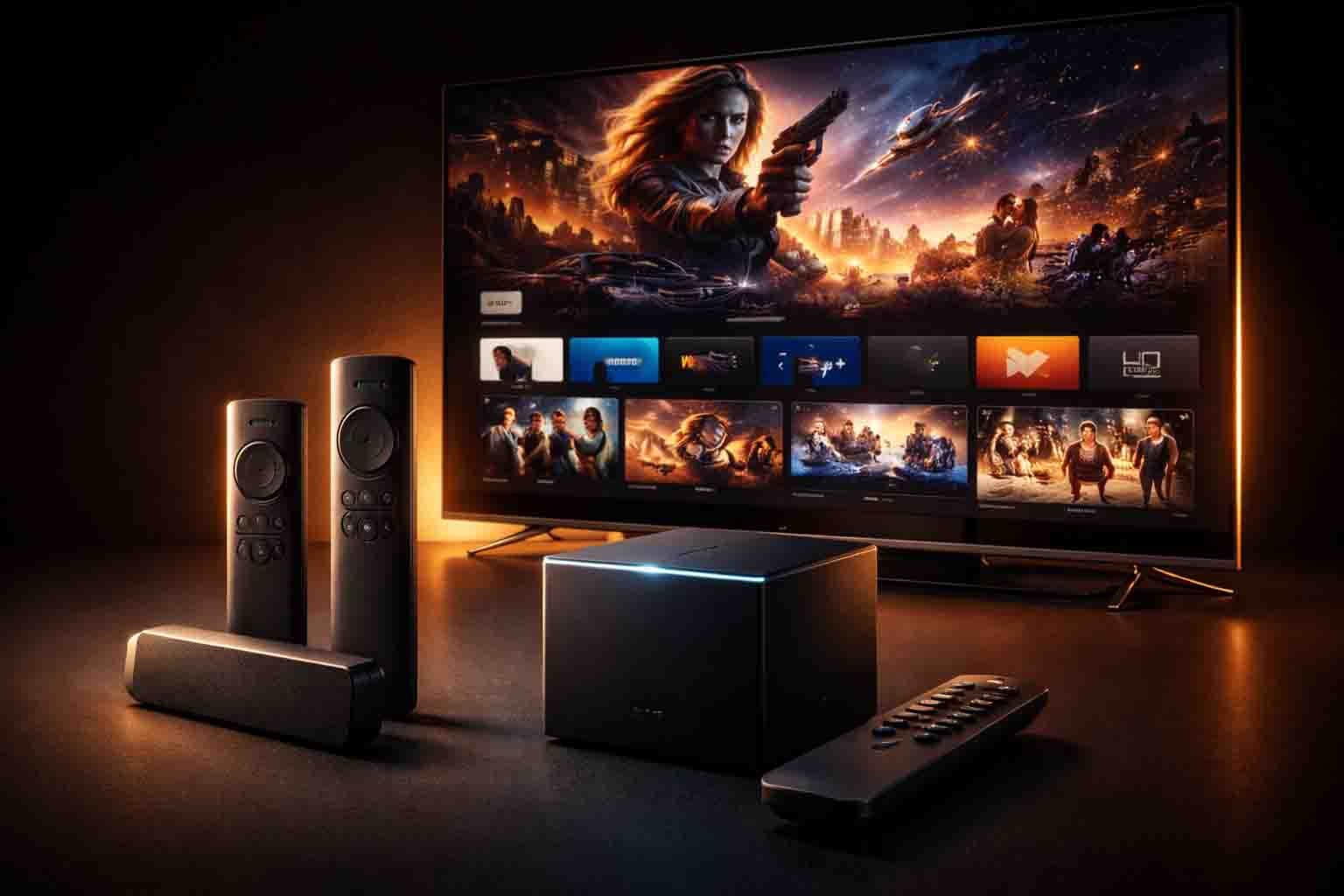
IPTV services on Amazon Firestick — Fire TV Stick, Fire TV Stick 4K and Fire TV Cube
01
Enable apps from unknown sources
From your Firestick home screen, go to Settings → My Fire TV → Developer Options. Turn on “Apps from Unknown Sources” and “ADB Debugging”.
On newer Firestick models this may be under Settings → My Fire TV → Install Unknown Apps.
02
Install the Downloader app
Go back to your home screen. Click the Search icon (magnifying glass) and type “Downloader”. Select it from the results and click Download to install. It’s free.
03
Open Downloader and enter the code
Open the Downloader app. When it asks for a URL or code, tap the text field and enter our app code:
2385038
Press Go and the IPTV app will start downloading automatically.
04
Install the IPTV app
Once the download is complete, a prompt will appear. Click Install and wait for the installation to finish. When done, click Open.
You can also click “Delete” on the downloaded file after installation to free up storage space.
05
Open the app and find your MAC address & device key
Open the Edge IPTV app. On the main screen you will see your MAC Address and Device Key displayed. Take a note or screenshot of both — you’ll need to send these to us.
The MAC address looks like: AA:BB:CC:DD:EE:FF — the device key is a short code shown on the same screen.
06
Contact us to activate your free trial
Send us your MAC Address and Device Key via WhatsApp, Telegram, or email. We will activate your trial within minutes.
07
Trial activated — start watching in 4K
Once we activate your trial, your app will load automatically. Browse 40,000+ live channels, 150,000+ movies and series — all in up to 4K Ultra HD, with zero buffering.
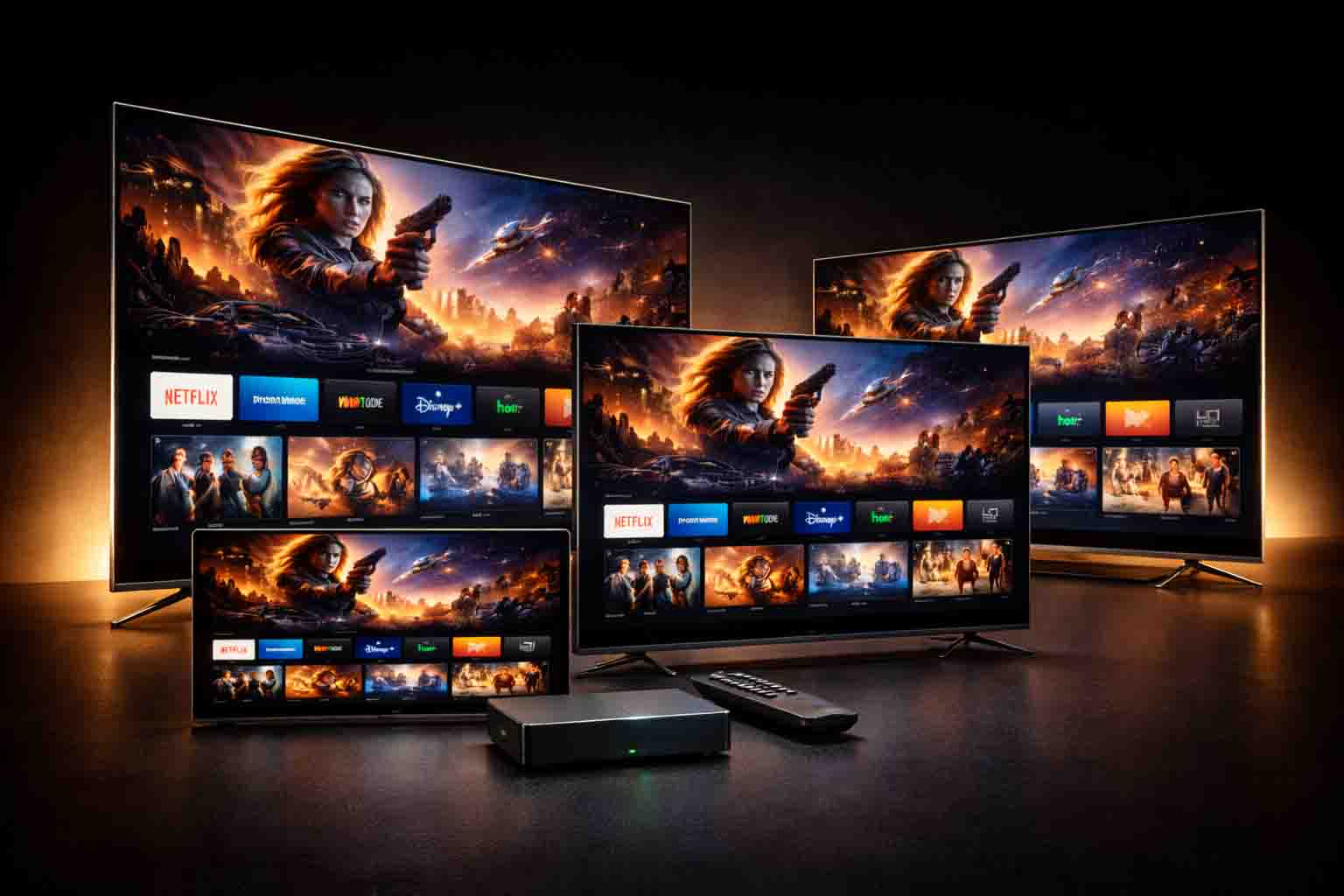
Android Devices

Setup on Android

Stream IPTV services on Android phones, tablets, Android TV boxes, and smart TVs running Android. Follow these simple steps.

IPTV services on Android — Android phone, tablet, TV box and smart TV
01
Allow installation from unknown sources
Go to Settings → Security (or Privacy on some devices) → enable “Unknown Sources” or “Install Unknown Apps”. On Android 8+, you’ll be asked to allow this per-app when installing.
On Android TV boxes go to Settings → Device Preferences → Security & Restrictions → Unknown Sources.
02
Download and install the Downloader app
Open the Google Play Store and search for “Downloader by AFTVnews”. Install it — it’s free. Alternatively, search for it directly in your Android TV box app store.
03
Open Downloader and enter the code
Launch the Downloader app. Tap the input field on the home screen and enter our downloader code:
2385038
Tap Go. The IPTV app file (.apk) will download automatically to your device.
04
Install the APK file
When the download completes, tap Install on the prompt that appears. If Android asks for permission to install from this source, tap Allow and proceed.
Installation takes about 10–20 seconds. Don’t close the app during this time.
05
Open the app and find your MAC address & device key
Open the Edge IPTV app. On the main screen you will see your MAC Address and Device Key. Take a screenshot or note them down.
The MAC address looks like: AA:BB:CC:DD:EE:FF — both values are shown on the app’s home screen before login.
06
Contact us to activate your free trial
Send us your MAC Address and Device Key and we’ll activate your trial within minutes.
07
Trial activated — start watching in 4K
Once activated, your app loads instantly. Browse 40,000+ worldwide channels, 150,000+ movies and series — all in up to 4K Ultra HD quality, with zero buffering.

Compatibility

IPTV Services on Every Device

Our IPTV services work on virtually any screen that connects to the internet. Use the recommended app for your device below.

📺
Firestick / Fire TV
Downloader code 2385038
📱
Android Phone & Tablet
Downloader code 2385038
🖥️
Android TV Box
Downloader code 2385038
📺
Smart TV
IBO Player / Hot Player
🍎
iPhone & iPad
IBO Player / Hot Player
🍎
Apple TV
IBO Player / Hot Player
💻
Windows PC
IBO Player / Hot Player
🖥
Mac
IBO Player / Hot Player

Smart TV · iPhone · iPad · Apple TV · Windows

Setup with IBO Player

IBO Player is the recommended app for IPTV services on Smart TVs (Samsung, LG, Sony, Hisense), iPhone, iPad, Apple TV, and Windows. It’s one of the easiest ways to get your IPTV services running.

IPTV services on Smart TV — Samsung, LG, Sony and Hisense smart TVs IPTV services on iOS — iPhone, iPad and Apple TV
01
Download IBO Player on your device
Search for IBO Player in your device’s app store and install it — it’s free.

Samsung / LG / Sony Smart TV: Open the app store (Smart Hub / LG Content Store / Google Play) and search “IBO Player”.

iPhone / iPad / Apple TV: Open the App Store and search “IBO Player Pro”.

Windows: Visit iboplayer.com and download the Windows installer.
IBO Player is available on most Smart TV brands. If your TV doesn’t have it, scroll down to try Hot Player as an alternative.
02
Open IBO Player and find your MAC address & device key
Launch IBO Player. On the main screen before any login, you will see your MAC Address and Device Key displayed. Take a screenshot or write them down — you’ll need to send these to us.
The MAC address looks like: AA:BB:CC:DD:EE:FF — both values are shown on the IBO Player home screen.
03
Contact us to activate your free trial
Send us your MAC Address and Device Key via WhatsApp, Telegram, or email. We’ll activate your free trial within minutes.
04
Trial activated — start watching in 4K
Once we activate your trial, IBO Player will load your full channel list automatically. Browse Live TV, Movies, and Series — 40,000+ channels and 150,000+ titles in 4K.

All Devices — Alternative App

Setup with Hot Player

Hot Player is a universal app for IPTV services available on most devices — Smart TV, Android, iPhone, iPad, Apple TV, Windows, and more. A great alternative if IBO Player isn’t available on your device.

IPTV services on Windows — desktop PC, laptop and tablet
01
Download Hot Player on your device
Search for Hot Player in your device’s app store and install it — it’s free.

Available on: Samsung Smart TV, LG Smart TV, Sony TV, iPhone, iPad, Apple TV, Android, Windows, and more.
If you can’t find it by name, search “Hot IPTV Player” or visit hot-player.net for direct download links.
02
Open Hot Player and find your MAC address & device key
Launch Hot Player. On the main screen you will see your MAC Address and Device Key displayed. Screenshot or note them down — you’ll need to share these with us to activate.
The MAC address looks like: AA:BB:CC:DD:EE:FF — both values appear on the Hot Player home screen before login.
03
Contact us to activate your free trial
Send us your MAC Address and Device Key and we’ll activate your trial within minutes.
04
Trial activated — start streaming in 4K
Once activated, Hot Player loads your full library instantly — 40,000+ live channels, 150,000+ movies and series in 4K. Navigate using Live TV, Movies, or Series tabs.

Quick reference

Which App for Your Device?

Not sure which app to use for your IPTV services? Here’s the quick reference guide for every device.

Device Recommended App Alternative
Firestick / Fire TV Our App (code 2385038) Hot Player
Android Phone / Tablet Our App (code 2385038) Hot Player
Android TV Box Our App (code 2385038) IBO Player
Smart TV (Samsung/LG/Sony) IBO Player Hot Player
iPhone / iPad IBO Player Hot Player
Apple TV IBO Player Hot Player
Windows PC IBO Player Hot Player
Mac IBO Player Hot Player

Don’t Have a Subscription Yet?
Start Your Free Trial.

Try our IPTV services free — no credit card required. Setup takes under 5 minutes.

Get Free Trial on WhatsApp